After the sale
Customer order hub
Looking for how you manage service? Order workspace
What you get
What comes with it on every plan.
- A private order page in your business name, never indexed by search engines. Its link expires in time, for example 90 days after delivery.
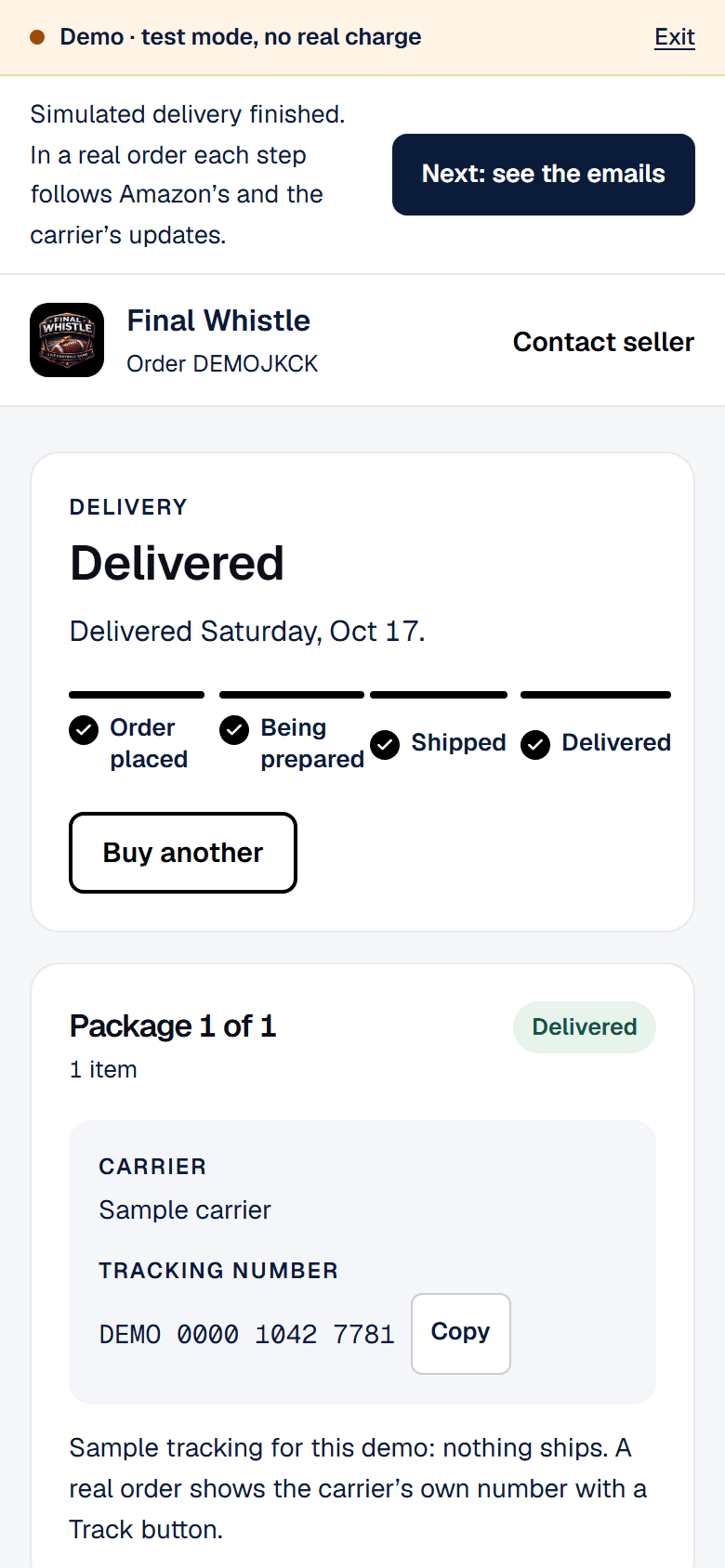
- Carrier, tracking number and delivery steps as Amazon reports them, and an estimated delivery date when Amazon gives one.
- Your support email, plus phone and hours when you add them, per business, campaign or offer. Each order keeps the contact it was placed with, and you can move open orders to a new inbox.
- Your returns policy and a payment summary with any refund.

How it works
- Step 1:
The customer pays
The thank-you page after checkout links to their private order page. No account or app needed.
- Step 2:
Amazon ships it
The carrier, tracking number and each delivery step appear as Amazon reports them.
- Step 3:
They can reach you
Your support email on every order, and your phone and hours when you add them.
Step by step, in detail
- Step 1:
The shopper pays
The thank-you page after checkout links to their order hub, and so do their order emails once order emails are on for your account. No account or app needed.
- Step 2:
Amazon ships it
The carrier, tracking number and each delivery step appear as Amazon reports them. We check on a schedule, and the shopper can refresh.
- Step 3:
They can reach you
Your support email on every order, and your phone and hours when you add them.
- Step 4:
Refunds show on the page
A refund you make from the order appears in the page’s payment summary.
Example · Final Whistle
A shopper asks where their order is
Priya buys the Final Whistle Live Football Party Card Game for $19.99 from a stadium flyer. Two days later she opens her order hub and sees the latest step Amazon reported, with the carrier and tracking number.
She has a question about gift wrap, so she writes to the seller’s support email shown on the page.
In depth
After the sale
Who does what for every order.
- You
- Answer customer questions, decide returns and refunds, and issue refunds from the order page or Stripe.
- Stripe
- Takes the payment in your name into your own Stripe account, processes refunds, and pays out to your bank.
- Amazon
- Picks, packs and ships from your FBA stock through Multi-Channel Fulfillment, and chooses the carrier.
- Convert Channel
- Sends each paid order to Amazon once you release it, keeps the order hub up to date, sends order emails once they’re on for your account, and records every sale in your reports.
The order emails
- Order confirmation: when the payment succeeds.
- Shipped: for each package, with tracking, and again if tracking is corrected.
- Delivered: when every package is delivered.
- Needs attention: if a shipping problem stays open 24 hours.
- Refund notice: after each refund.
They go out in your business name, link to the order hub, and can’t be turned off. We’re switching order emails on account by account; until yours are on, copy the order hub link from the order and send it. We never send newsletters or promotions.
What the shopper demo shows
- 1Start: choose a QR code, a purchase link or a buy button.
- 2The purchase page your customers see.
- 3Checkout: Stripe’s test checkout with a test card when it’s switched on for the site, otherwise a checkout that says it’s simulated. No real charge either way.
- 4The customer order hub, with simulated delivery steps and a sample carrier. It isn’t real carrier tracking.
- 5Ask the seller a question: fixed questions with sample replies. Nothing is sent.
- 6Done: previews of the order emails. Nothing is sent.
Buy from the demo store, then open this order hub.
About a minute. No real charge, nothing ships, no email is sent.
Questions
Do shoppers need an account?
No. The link on their thank-you page (and in their order emails, once those are on for your account) opens their order hub. It’s private to that order and never indexed by search engines, but anyone with the link can see the order, so it’s shared with care.
Does the page say Amazon?
Only if you turn on the Amazon mention; then shoppers see “Ships from an Amazon fulfillment center”. Otherwise they see your name. Tracking shows the carrier Amazon chose, and the package may show Amazon unless Amazon ships it unbranded, which you can ask for when your Amazon account allows it.
Can I turn the order emails off?
No. The confirmation with the order hub link, a shipped email for each package, the delivered email and refund notices go out in your name and can’t be turned off. We’re switching order emails on account by account; until yours are on, copy the order hub link from the order and send it.
Is the tracking live?
It updates as Amazon reports each step. We check on a schedule, and the shopper can refresh the page. A delivery date is Amazon’s estimate, not a promise.
Whose returns policy is shown?
Yours: the offer’s own policy or your business default. There’s no universal returns promise.
One flat price. No share of your sales, no fee per order.
Flat plans from $19 a month.